
LinkedIn Pixel Tracking: How to Set Up and Optimize Conversions for B2B Campaigns
Learn LinkedIn pixel tracking setup, conversion optimization, Insight Tag best practices, and B2B attribution strategies with Factors.ai.
.avif)
Senior Content Marketing Manager



.svg)


TL;DR
- LinkedIn pixel tracking relies on the LinkedIn Insight Tag, a free sitewide JavaScript snippet that connects ad clicks to real conversion events on your website.
- B2B campaigns need longer attribution windows and deeper conversion events than most teams initially configure, because buying cycles stretch across weeks and multiple stakeholders.
- Install the Insight Tag once sitewide, then create conversion actions tied to actual revenue moments like demo requests and sales-qualified meetings, not just page views.
- Pixel tracking alone can't tell you which accounts converted, how multi-touch journeys unfolded, or how pipeline actually progressed, so it needs to be paired with account-level attribution.
- Factors.ai fills those gaps by connecting LinkedIn data to company-level intelligence, CRM pipeline stages, and cross-channel journey maps.
Have you heard of optimism? No, not the normal kind.
I’m talking about the kind of optimism that shines bright like a diamond right after launching LinkedIn ads. The campaign is live, impressions are rolling in, clicks are happening, and everyone feels like momentum has officially arrived. Screenshots of early numbers get dropped into Slack. Someone says, Oooh! That looks promising.” Spirits are high, budgets feel justified, beer is cold, life is good.
Then a few weeks later, reality enters the chat.
Someone asks how many qualified leads came through. Or how many demo requests can be tied to the campaign? Or whether the spend is actually producing pipeline. And suddenly the room is full of sad vibes, guesses, warm beers, and one person nervously refreshing the dashboard.
Because visibility is not the same thing as measurement.
This is where a lot of B2B teams get humbled. They launch campaigns before setting up proper LinkedIn pixel tracking, which means they can see surface-level activity but not the actions that matter after the click. Website visits show up. Maybe engagement looks healthy. But without accurate tracking, you’re basically paying to generate suspense.
And suspense is a terrible reporting metric.
This blog will help you set up LinkedIn pixel tracking the right way, from installing the Insight Tag to configuring meaningful conversion events, fixing common tracking issues, and understanding where pixel data helps versus where it falls short. If you’re investing serious money into LinkedIn ads, this is the difference between “we think it’s working” and “we know it is.”
What is LinkedIn pixel tracking?
When marketers talk about "LinkedIn pixel tracking," they're almost always referring to the LinkedIn Insight Tag. It's a lightweight JavaScript snippet you install on your website, and it works as LinkedIn's primary conversion tracking tool. Once it's live, the tag monitors what visitors do after they click or view your LinkedIn ads, then reports that activity back to Campaign Manager.
The concept is straightforward. Someone sees your ad, clicks through to your site, and takes an action you care about. The Insight Tag captures that action and ties it back to the campaign, audience, and creative that drove the visit. Without it, LinkedIn only knows that a click happened. With it, LinkedIn knows what that click led to.
For B2B teams, the actions worth tracking tend to follow a pattern. Demo requests sit at the top of the list, followed by contact form submissions, pricing page visits, whitepaper downloads, and webinar signups. These aren't impulse purchases. They're signals that someone is actively evaluating your product, and they often happen hours or days after the initial ad interaction. The Insight Tag connects those delayed actions back to the original campaign so you can measure what's actually driving business outcomes, not just traffic.
It's worth noting that LinkedIn officially calls this the Insight Tag, not a tracking pixel. The term "pixel" is borrowed from the Facebook and Meta advertising world, where a small invisible image (literally a pixel) was used to fire tracking events. LinkedIn's approach is technically a JavaScript tag, not an image pixel, but the marketing world has collectively decided to call every platform's website tracker a "pixel." You'll hear both terms used interchangeably, and for practical purposes, they refer to the same thing. If you've been searching for "linkedin tracking pixel," you've been looking for the Insight Tag all along.
The tag does wayyy more than just count conversions, though. It also powers LinkedIn's website retargeting audiences, allowing you to show follow-up ads to people who visited specific pages. It feeds the website demographics report, which shows you the professional profiles of your site visitors by job title, industry, company size, and seniority. And it gives LinkedIn's algorithm the conversion signals it needs to optimize campaign delivery toward people who are more likely to take the actions you care about.
All of that functionality comes from one tag installed once across your entire site. You don't need separate tags for each page or each campaign, which is one of the genuinely elegant things about LinkedIn's approach.
How does LinkedIn pixel tracking work for B2B campaigns?
The basic mechanics of LinkedIn pixel tracking are simple enough. A prospect sees your ad in their LinkedIn feed, clicks through to your website, and eventually takes some kind of action. The Insight Tag fires, LinkedIn registers the conversion, and Campaign Manager attributes it back to the right campaign based on your selected attribution window. On paper, it sounds like any other ad platform's tracking flow.
But B2B is where the story gets more interesting, and more complicated. The gap between a click and a meaningful business outcome is enormous compared to ecommerce or consumer advertising. When someone clicks a DTC ad and buys a pair of trainers twenty minutes later, the attribution is clean and immediate. When someone clicks a B2B ad and eventually becomes a $50,000 deal, the journey between those two moments is long, messy, and involves a lot of people your ad never touched directly.
Consider this scenario: A VP of Marketing sees your sponsored content on a Tuesday morning, clicks through to a blog post, reads for two minutes, and leaves. The following week, she comes back directly and browses the pricing page. Three days after that, she fills out a demo request form. The sales team qualifies the opportunity, and it enters the pipeline forty-five days later. Six months down the line, the deal closes.
Without LinkedIn pixel tracking, that entire chain is invisible. Campaign Manager shows one click and zero conversions. The campaign looks average at best, and someone on the team starts questioning whether LinkedIn ads are worth the budget. With proper tracking and a sensible attribution window, LinkedIn can connect that demo request back to the original ad click. Suddenly the campaign doesn't just look average. It looks like the thing that started a real pipeline opportunity.
This is why B2B teams need pixel tracking more urgently than most. The buying cycles are long, often stretching across weeks or months. Multiple stakeholders get involved, and the person who clicked the ad might not even be the person who fills out the form. Decision-making is distributed across teams, which means the path from first touch to closed deal is rarely a straight line. LinkedIn pixel tracking won't capture every twist in that journey, but it captures the critical first connection between ad exposure and on-site action.
The attribution windows you select matter enormously here. LinkedIn lets you choose how far back a conversion can be credited to an ad interaction. For B2B, the default settings are often too short. If your average sales cycle is sixty days and your attribution window is seven days, you're systematically undercounting the impact of campaigns that plant seeds early in the buying process. Matching your attribution window to the reality of your sales cycle is one of the most important configuration decisions you'll make, and it's one that most teams don't revisit after initial setup.
LinkedIn Insight Tag vs LinkedIn tracking pixel
This comparison trips up a lot of marketers, so let's clear it up quickly. When someone says "LinkedIn tracking pixel," they're referring to the same thing as the LinkedIn Insight Tag. There isn't a separate product called the LinkedIn pixel. The Insight Tag is LinkedIn's one and only website tracking mechanism for advertisers.
The confusion comes from how other platforms work. Meta has the Meta Pixel. Twitter had its tracking pixel. Google has its own tag ecosystem. So when marketers move to LinkedIn, they naturally search for "LinkedIn pixel" because that's the mental model they've built from other channels. LinkedIn chose a different name, calling it the Insight Tag, but the function is essentially the same: it tracks what happens on your site after someone interacts with your ad.
That said, there are a few things the Insight Tag does that go beyond basic pixel-style conversion tracking. Here's a quick comparison to make the distinction clear:
The website demographics feature is particularly useful for B2B. Even before you start tracking conversions, the Insight Tag gives you a professional breakdown of who's visiting your site. You can see whether your LinkedIn campaigns are driving the right seniority levels, whether the industries match your ICP, and whether company sizes align with your target segments. It's like a lightweight firmographic report layered on top of your website analytics.
The retargeting capability deserves a mention too. Once the Insight Tag has been active long enough to build audience pools, you can create retargeting segments based on specific page visits. Someone who visited your pricing page but didn't convert? That's a retargeting audience. Someone who read three blog posts in a week? Another audience. These segments become the building blocks for more sophisticated LinkedIn campaigns down the line.
So when you hear "LinkedIn tracking pixel" and "LinkedIn Insight Tag," just know they're pointing at the same thing. The Insight Tag is the official name, the pixel is the colloquial one, and there's no functional difference to worry about.
How do you set up LinkedIn pixel tracking step by step?
The LinkedIn pixel setup process is more straightforward than most teams expect, but the details matter. A tag that's installed but misconfigured is arguably worse than no tag at all, because it gives you false confidence in data that isn't accurate. Here's the full walkthrough.
Step 1: Install the Insight Tag
Start in LinkedIn Campaign Manager. Navigate to the "Analyse" section, then open "Insight Tag" (in some account layouts, you'll find this under the "Signals Manager" or "Data" section, as LinkedIn occasionally updates the Campaign Manager interface). You'll see a JavaScript code snippet ready to copy.
You have three main options for installation:
- Google Tag Manager (GTM): This is the most common method for marketing teams. Create a new tag in GTM, select the LinkedIn Insight Tag template from the community gallery, paste your partner ID, and set it to fire on all pages. GTM makes it easy to manage without developer involvement, and it keeps all your tracking tags in one place.
- Direct CMS installation: If you're running WordPress, HubSpot, Webflow, or another CMS with header script injection, you can paste the Insight Tag code directly into the site-wide header. Most CMS platforms have a dedicated section for tracking scripts, usually under settings or integrations.
- Developer deployment: For custom-built websites or more complex setups, hand the code snippet to your development team and ask them to place it in the global header template. The tag needs to load on every page across the entire domain.
One important point: LinkedIn states that a single sitewide installation of the Insight Tag is sufficient. You don't need separate tags for different pages, subdomains, or campaigns. One tag does everything, and installing it multiple times on the same page actually causes problems (more on that in the troubleshooting section).
Step 2: Verify tag status
After installation, go back to Campaign Manager and check the Insight Tag status. It takes a few minutes to a few hours for LinkedIn to recognise the tag and mark it as "Active." If it still shows "Unverified" after twenty-four hours, something went wrong in the installation. Common culprits include consent management platforms blocking the tag, caching layers serving the old version of your site, or the tag being installed in the body instead of the header.
You can also use browser developer tools or extensions like the LinkedIn Insight Tag Helper (a Chrome extension) to verify that the tag is firing correctly on page load. This is worth doing even after you see the "Active" status, because it confirms the tag is actually loading in the browser environment your visitors experience.
Step 3: Create conversion actions
This is where the real value begins. Go to the "Conversions" section in Campaign Manager and create new conversion actions. Each conversion action represents a specific event you want to track. You'll typically define these based on URL rules, meaning you're telling LinkedIn to register a conversion when someone lands on a specific thank-you or confirmation page.
Here are the conversion actions most B2B teams should create:
- Demo request confirmation page: The page a visitor sees after submitting a demo form. This is your highest-value conversion for most SaaS businesses.
- Contact form thank-you page: For general "contact sales" or "talk to an expert" submissions.
- Resource download confirmation: The page shown after someone downloads a whitepaper, ebook, or guide.
- Trial signup confirmation: If you offer a free trial or freemium product, track the signup completion.
- Webinar registration confirmation: For event-based campaigns, track the registration rather than just the landing page visit.
For each conversion, you'll set the URL match rule (exact URL, starts with, or contains), choose the conversion type (lead, purchase, signup, etc.), and set the attribution window. For B2B, consider setting longer attribution windows than the defaults. A 30-day post-click window captures more of the delayed actions that are typical in longer buying cycles.
Step 4: Associate conversions to campaigns
Creating conversion actions doesn't automatically connect them to your campaigns. You need to explicitly attach each conversion goal to the relevant campaigns in Campaign Manager. When you create or edit a campaign, there's a conversion tracking section where you select which conversion actions apply. This step is easy to forget, and it's one of the most common reasons teams see zero conversions despite having a working tag.
Make sure you match the right conversions to the right campaigns. A brand awareness campaign probably shouldn't be optimized toward demo requests. A demand generation campaign focused on bottom-of-funnel audiences should. Aligning campaign objectives with appropriate conversion events gives LinkedIn's algorithm the right signals to optimize delivery.
Step 5: Test everything
Don't trust the setup until you've tested it end to end. Open your website in a browser, navigate to one of your conversion pages (or submit a test form to reach the confirmation page), and check whether the conversion registers in Campaign Manager. Keep in mind that conversions can take a few hours to appear in reporting, so don't panic if it's not instant.
Use the LinkedIn Insight Tag browser extension to confirm the tag fires on the conversion page. Check your GTM debug mode if you're using Tag Manager. Submit a real test lead through each form to make sure the full flow works, from form submission to thank-you page to LinkedIn conversion registration.
It's a bit tedious, but testing each conversion path individually catches configuration errors that would otherwise go unnoticed for weeks. Nothing's worse than running a campaign for a month and then discovering that your "demo booked" conversion was pointing at the wrong URL.
What are the best conversion events to track for B2B?
Not all conversions are created equal, and one of the biggest mistakes B2B teams make is tracking too few events. Most teams set up a single "lead" conversion and call it done, which means they're blind to everything that happens between a first visit and a form submission. The best approach is to think in tiers, with events mapped to different stages of the buying journey.
- Primary revenue events
These are the conversions closest to actual revenue. They represent moments where someone has signalled genuine purchase intent and your sales team should be getting involved. Track these first, and give them the highest priority in your reporting.
- Demo requests: The single most important conversion for most B2B SaaS companies. Someone asking to see the product in action is as close to a hand-raise as you'll get from a website visit.
- Contact sales submissions: Similar to demo requests but framed as a direct conversation. These tend to come from buyers who are further along in their evaluation.
- Qualified trial signups: If your product has a free trial, the signup itself is a conversion event. But if you can, track the "qualified" version, the signup that passes your lead scoring threshold, rather than every random signup.
- Booked meetings: If your site uses a scheduling tool like Calendly or Chili Piper, the confirmation page after a meeting is booked is a strong conversion event to capture.
- Mid-funnel events
These events don't represent an immediate sales opportunity, but they indicate that someone is actively evaluating options and comparing solutions. Tracking them gives you visibility into the research phase of the buying journey, which is where B2B prospects spend most of their time.
- Pricing page visits: Someone checking your pricing is doing mental math about whether your product fits their budget. It's one of the strongest intent signals available on most B2B websites.
- ROI calculator completions: If you have a value calculator or ROI estimator, completion events show that a prospect is trying to build a business case internally.
- Webinar registrations: Registering for a product-focused webinar indicates a willingness to invest time in learning about your solution, which is a much stronger signal than just viewing a landing page.
- Product comparison page views: If you have "us vs competitor" pages, visits there suggest active evaluation and competitive consideration.
- Top-of-funnel events
These are the lightest-touch events, useful for understanding campaign reach and early engagement. They won't drive pipeline attribution directly, but they give LinkedIn's algorithm broader data to work with and they help you build retargeting audiences.
- Ebook or guide downloads. Content downloads show interest in the topic area, even if the person isn't ready to buy anything yet.
- Newsletter signups. Subscribing to ongoing content is a low-commitment action, but it shows someone wants to stay in your orbit.
- Video completions or engaged sessions. If you can configure events based on time-on-page thresholds or video watch percentage, these capture meaningful engagement beyond a simple page view.
The trap most B2B teams fall into is tracking only the primary events and ignoring everything else. When you only measure demo requests, you miss the dozens of pricing page visits and content downloads that signal growing interest within target accounts. Those mid-funnel and top-funnel events are your early warning system. They tell you which campaigns are warming up future pipeline even when the demo numbers haven't moved yet.
Think of it like weather forecasting. Demo requests are the rain. Mid-funnel events are the clouds forming. If you only look at whether it rained today, you'll never see the storm building for next week.
How do you optimize LinkedIn conversions after setup?
Getting the Insight Tag installed and conversion events configured is just the starting line. The real work is what you do with the data once it starts flowing. Most teams treat conversion tracking as a set-and-forget task, which means they end up optimizing campaigns based on surface-level metrics that don't tell the full story.
- Use higher-quality events as your optimisation targets
LinkedIn's campaign algorithms optimize delivery toward the conversion events you select. If you tell LinkedIn to optimize toward "page views," it'll find people who visit pages. That's technically a conversion, but it doesn't mean anything for your pipeline. The better approach is to optimize toward the highest-quality event you have enough volume for.
Demo requests are the ideal optimisation target for most B2B demand generation campaigns. If you don't have enough demo volume to give LinkedIn's algorithm a clear signal (you generally need at least fifteen to twenty conversions per week), step down to the next tier. Pricing page visits or webinar registrations can work as proxy events until your volume is high enough for direct optimisation toward revenue events.
The key principle is simple: optimize toward the closest possible signal to actual revenue. Every step you move away from revenue, the more noise enters the system. LinkedIn will dutifully find people who download ebooks all day long, but that won't help if none of those people ever talk to your sales team.
- Separate campaign goals clearly
One of the most common optimisation mistakes is running every LinkedIn campaign toward the same conversion goal. Brand awareness campaigns, demand generation campaigns, and account-based marketing campaigns all serve different purposes, and they should be measured against different events.
Awareness campaigns should be judged on engagement signals: video views, social engagement, and reach among your target audience. Expecting demo requests from a brand awareness campaign is like expecting someone to propose on the first date. It happens occasionally, but it's not a reasonable baseline.
Demand generation campaigns should track leads and demo requests. These campaigns are designed to drive action from people who already have some familiarity with the problem you solve and the category you operate in.
ABM campaigns, targeting specific accounts, should track pipeline-level actions. Booked meetings, opportunity creation, and progression through sales stages matter more here than raw lead count. You're fishing with a spear, not a net, so the metrics need to be proportionally precise.
- Use attribution windows that match your sales cycle
LinkedIn's default attribution windows work fine for short-cycle purchases, but B2B sales rarely close quickly. If your average time from first touch to demo request is three weeks, a seven-day attribution window will systematically miss conversions that your campaigns actually influenced. Most B2B teams should test longer post-click windows, ideally 30 days, and compare what the data looks like across different window lengths.
Longer windows introduce more ambiguity, that's the trade-off. A conversion attributed 28 days after a click isn't as cleanly connected as one that happened within an hour. But in B2B, where research and evaluation happen over extended periods, short windows create a false picture. They make it look like campaigns aren't working when they are, and that leads to premature budget cuts on channels that are actually building pipeline.
- Feed data back into your campaigns
Conversion data shouldn't just sit in a report. It should actively shape what you do next. Use your conversion data to build retargeting audiences: people who visited the pricing page but didn't convert, people who downloaded content but haven't booked a demo, people who started a form but abandoned it midway.
Equally important, use audience exclusions. If someone already became a customer, stop showing them demand gen ads. If a lead already booked a demo, exclude them from the top-of-funnel campaign that brought them in. These seem like small optimisations, but they compound over time, reducing wasted spend and improving conversion rates across the board.
- Watch cost per opportunity, not just cost per lead
This is where most LinkedIn ads conversations go sideways. Cost per lead (CPL) is the metric everyone looks at first, and it's the metric that causes the most bad decisions. A campaign generating leads at £40 each sounds better than one generating leads at £120 each. But if the £40 leads never convert to pipeline and the £120 leads have a 30% opportunity rate, the "expensive" campaign is actually five times more efficient.
The metric that matters for B2B is cost per opportunity, or even better, cost per qualified pipeline dollar. Getting there requires connecting your LinkedIn conversion data to your CRM, which is where simple pixel tracking starts to show its limitations. But even without a perfect CRM sync, you can start by manually comparing campaign-level conversion data against sales outcomes on a monthly cadence. It's not automated, but it's clarifying. You'll quickly learn which campaigns produce leads that actually go somewhere and which ones just inflate the dashboard.
Common LinkedIn pixel tracking problems (and how to fix them)
Even when the setup process goes smoothly, LinkedIn pixel tracking has a knack for breaking in subtle ways. The tag might be installed correctly but still produce misleading data, or it might silently stop working after a site update. Here are the issues B2B teams run into most often, along with the fixes.
Problem 1: No conversions showing in Campaign Manager
This is the most common complaint, and it usually comes from one of three causes.
- The tag is inactive or unverified
Go to Campaign Manager and check the Insight Tag status. If it doesn't say "Active," the tag isn't firing on your site. Common reasons include consent management platforms blocking the script, caching layers serving an old version of the page, or the tag being placed in the wrong section of the HTML.
- URL rules are misconfigured
Your conversion action is set to trigger when someone hits a specific URL, but the actual URL doesn't match your rule. This often happens with dynamic query parameters, trailing slashes, or HTTPS/HTTP mismatches. Double-check the exact URL of your thank-you page in a browser and compare it character by character against your conversion rule.
- Conversions aren't mapped to the right campaigns
You created the conversion action but forgot to attach it to the campaigns that should be tracking it. This is embarrassingly easy to overlook, especially when you're launching multiple campaigns at once.
Problem 2: Duplicate conversions
Seeing inflated conversion numbers? The usual culprits are straightforward.
- Multiple Insight Tags on the same page
This happens when someone installs the tag via GTM and also has it hardcoded in the site header. Both fire on every page load, so every conversion gets counted twice. Audit your page source and GTM container to make sure only one instance exists.
- Duplicate GTM triggers
Even with a single tag, your GTM configuration might have multiple triggers that cause the same conversion event to fire more than once. Check your trigger setup and make sure there's no overlap between page-view triggers, form-submission triggers, and custom event triggers.
Problem 3: Low match rates
LinkedIn might report that your tag is active and conversions are being tracked, but the match rate between site visitors and LinkedIn members seems suspiciously low. A few things could be happening.
- Consent banners are blocking the tag
If you've implemented a cookie consent platform (as GDPR and other regulations require), the Insight Tag might only load for visitors who actively accept tracking cookies. Depending on your audience's consent behaviour, this could dramatically reduce your trackable population. There's no easy fix here without compromising compliance, but it's important to understand the data gap.
- Cross-domain issues
If your website spans multiple domains or subdomains and the Insight Tag is only installed on some of them, you'll lose tracking continuity when visitors navigate between domains. Make sure the tag is present on every domain where conversions can happen.
- Single-page application (SPA) routing problems
SPAs built with React, Angular, or Vue often handle page navigation without full page reloads. Since the Insight Tag typically fires on page load, SPA route changes might not trigger it. You'll need to configure virtual pageviews in GTM or use LinkedIn's event-specific tracking to capture conversions in SPA environments.
Problem 4: Leads tracked but no pipeline visibility
This isn't strictly a pixel tracking problem, but it's the one that frustrates B2B teams the most. You can see conversions in Campaign Manager, but you have no idea which of those leads turned into real opportunities. The pixel tells you someone filled out a form, but it can't tell you whether the sales team qualified that lead, whether an opportunity was created, or whether the deal progressed through pipeline stages.
The fix here isn't a pixel configuration. It's a process and tooling change. You need to connect your LinkedIn conversion data to your CRM, either through a direct integration, a CDP, or a multi-touch attribution platform. Without that connection, you're measuring the first few seconds of a relationship that might last months, and making budget decisions based on an incomplete picture. This limitation is fundamental enough that it deserves its own section, which is exactly where we're headed next.
Why pixel tracking alone isn't enough for B2B
LinkedIn pixel tracking is necessary, and every team running LinkedIn ads should have it configured properly. But calling it sufficient for B2B attribution would be a stretch, a generous one at that. The pixel captures a specific type of data, website events triggered by known conversion rules, and it does that job well. What it can't do is fill in the rest of the picture that B2B marketing and sales teams need.
- The first gap is identity. The Insight Tag tracks events at the individual browser level, but B2B buying decisions happen at the account level. Knowing that someone submitted a demo request is useful. Knowing that three people from the same target account visited your pricing page, attended a webinar, and then submitted a demo request is a fundamentally different insight. Pixel tracking doesn't connect those dots.
- The second gap is the multi-touch journey. Most B2B buyers interact with your brand across multiple channels before they convert. They might discover you through a Google search, read an organic blog post, see a LinkedIn ad a week later, attend a webinar the following month, and finally book a demo after a direct visit. The LinkedIn pixel only sees the LinkedIn portion of that journey. It can't tell you about the Google search, the organic post, or the webinar that all contributed to the conversion. Without a cross-channel view, you'll overvalue some channels and undervalue others.
- The third gap is what happens after the form submission. Pixel tracking stops at the website event. It doesn't know whether the lead was qualified, whether an opportunity was created, whether the deal moved to proposal stage, or whether it eventually closed. For B2B teams, the website conversion is the beginning of the sales process, not the end of it. Measuring only up to that point is like judging a film by the opening scene.
There's also the offline world to consider. B2B deals are influenced by events, dinners, conferences, direct sales outreach, and channel partner introductions. None of those touchpoints appear in pixel data, but they all shape whether a deal happens and how fast it moves through the pipeline. Attribution debates in B2B sometimes resemble group projects where everyone claims credit for the final presentation. The pixel only represents one team member's contribution.
None of this means pixel tracking is useless… it's the foundation that everything else builds on. But treating it as the complete attribution solution for B2B leads to incomplete data, misallocated budgets, and an ongoing argument between marketing and sales about what's actually driving revenue. The teams that get the most from LinkedIn ads are the ones that combine pixel-level tracking with account intelligence, CRM data, and multi-touch attribution.
How does Factors.ai improve LinkedIn conversion tracking?
This is where the conversation shifts from what happened on the website to why it mattered for the business. LinkedIn pixel tracking captures the event. Factors.ai helps you understand the context, the account, the journey, and the revenue impact around that event. The two work together, not as replacements for each other but as layers that build a complete picture.
- Company-level attribution
The Insight Tag tells you that someone converted. Factors.ai tells you which company that someone belongs to. Instead of seeing anonymous conversion counts in Campaign Manager, you see which target accounts are engaging with your campaigns. That transforms your reporting from "we got 14 demo requests this month" to "Acme Corp, three people from our top-50 account list, hit the pricing page and booked a demo after seeing Campaign X." Sales teams care about the second version. The first one doesn't give them anything to act on.
- Multi-touch journey mapping
Factors.ai connects LinkedIn activity to what happened across your other channels. You can see that an account's journey started with a Google search, continued with three LinkedIn ad impressions, included a webinar attendance, and ended with a direct demo request. That full-journey view lets you evaluate LinkedIn's role in the bigger picture rather than judging it in isolation. Sometimes LinkedIn is the closer. Sometimes it's the opener. Knowing which role it played changes how you optimize your spend.
- Revenue reporting
Most LinkedIn dashboards stop at cost per lead. Factors.ai connects your ad data to CRM pipeline stages, which means you can report on cost per opportunity, cost per qualified pipeline dollar, and even influenced revenue by campaign. Moving from CPL to pipeline and revenue metrics changes the conversation with leadership. You stop defending clicks and start demonstrating business impact.
- Audience sync
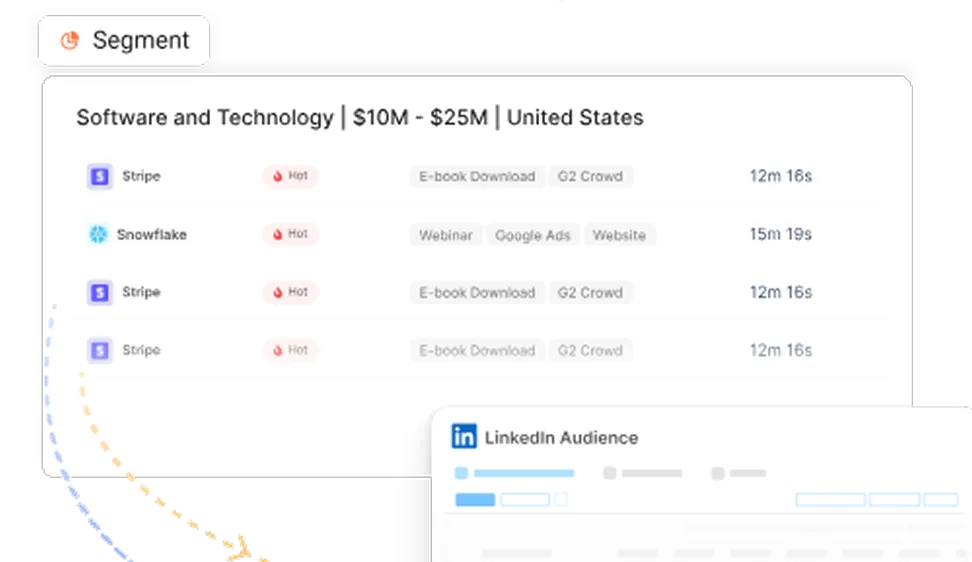
Factors.ai identifies high-intent accounts based on website behaviour, engagement patterns, and firmographic signals. It can then push those account audiences back into LinkedIn for targeted campaigns. Instead of running broad targeting and hoping the right accounts see your ads, you're actively directing budget toward the companies showing real buying signals. It closes the loop between intent data and ad delivery.
- Smarter optimisation
When you know which accounts and which journeys are producing pipeline, you can allocate spend with precision. Double down on the campaigns driving real opportunities. Pull back on the ones generating leads that never progress. optimize toward the signals that correlate with revenue, not just the signals that inflate the dashboard. Factors.ai gives you the data to make those calls confidently rather than guessing based on incomplete pixel data.
LinkedIn pixel tracking tells you what happened. Factors.ai helps you understand why it mattered and where to go next. For B2B teams that are serious about connecting ad spend to revenue, the combination is where the real leverage lives.
In a nutshell
LinkedIn pixel tracking, built on the Insight Tag, is the non-negotiable starting point for any B2B team spending budget on LinkedIn ads. Without it, you're paying for clicks and hoping for the best. With it, you can connect campaigns to real website actions like demo requests, pricing page visits, and content downloads.
The setup itself is manageable: one sitewide tag installation, a set of well-defined conversion actions, proper campaign mapping, and thorough testing. Where most teams fall short isn't the installation, it's what comes after. Choosing the right conversion events across primary, mid-funnel, and top-funnel tiers gives you a much richer picture of campaign performance than tracking only demo requests. Matching attribution windows to your actual B2B sales cycle prevents you from undercounting conversions that happen on a delayed timeline. optimizing toward pipeline-quality metrics rather than cost per lead keeps your budget focused on what moves revenue.
The honest limitation is that pixel tracking alone can't answer every question B2B teams need answered. It doesn't tell you which accounts are behind the conversions. It doesn't show the cross-channel journey that led up to the website event. And it doesn't track what happens in the CRM after the form was submitted. That's where tools like Factors.ai come in, layering account-level identity, multi-touch journey data, and revenue attribution on top of the pixel foundation.
If you're running LinkedIn ads today, make sure the Insight Tag is active, your conversion events are properly configured, and your attribution windows reflect how your buyers actually buy. Then connect that data to your CRM and account intelligence tools so you can move from counting leads to measuring pipeline. That's the sequence that turns LinkedIn from an expensive guessing game into a channel you can optimize with confidence.
Frequently asked questions about LinkedIn pixel tracking
Q1. What is LinkedIn pixel tracking?
LinkedIn pixel tracking typically refers to the LinkedIn Insight Tag, which is a JavaScript snippet you install on your website. It tracks conversions, builds retargeting audiences, provides website demographic data, and measures the impact of your LinkedIn ad campaigns. The term "pixel" is informal, but it points to the same official feature LinkedIn calls the Insight Tag.
Q2. Is LinkedIn pixel tracking free?
Yes. The Insight Tag is completely free to install and use. You can find it inside LinkedIn Campaign Manager under the Analyse or Signals Manager section.
Q3. What is the difference between the LinkedIn Insight Tag and a LinkedIn Pixel?
Technically, they are the same thing. While other platforms like Meta use an "image pixel," LinkedIn uses a JavaScript snippet called the Insight Tag. Marketers often use the terms interchangeably to describe the tracking code that connects website actions back to LinkedIn ad campaigns.
Q4. How do I verify if my LinkedIn Insight Tag is working?
Once installed, check the "Insight Tag" section under Analyse in LinkedIn Campaign Manager. The status should move from "Unverified" to "Active." For real-time verification, use the LinkedIn Insight Tag Helper Chrome extension, which shows you exactly which tags and conversion events are firing on any given page.
Q5. Why aren't my LinkedIn conversions showing up in Campaign Manager?
The most common reasons are:
- Missing Association: You created the conversion but didn't "attach" it to the specific campaign in the campaign settings.
- URL Mismatch: Your "Thank You" page URL doesn't exactly match the rule you set (e.g., HTTPS vs. HTTP or trailing slashes).
- Attribution Window: The conversion happened outside your selected window (e.g., a lead converted 40 days after a click, but your window is set to 30 days).
Q6. What is the best attribution window for B2B LinkedIn ads?
Because B2B buying cycles are long, a 30-day post-click and 7-day view-through window is a recommended starting point. Short windows (like 1-day or 7-day) often fail to capture the research-heavy nature of B2B sales, where a prospect may click an ad today but not request a demo for two weeks.
Q7. Can LinkedIn pixel tracking tell me which companies are visiting my site?
Yes, through the Website Demographics feature. By installing the Insight Tag, LinkedIn can provide a professional breakdown of your website visitors by company name, industry, job seniority, and company size—even if they haven’t filled out a form.
Q8. Do I need to install the Insight Tag on every page?
Yes. For the best data, the tag should be placed in your website’s global header so it loads sitewide. This allows you to track full journeys, build retargeting audiences based on specific page visits (like your pricing page), and see a complete picture of your website demographics.
Q9. Why does LinkedIn pixel tracking report more conversions than my CRM?
This usually happens because LinkedIn uses cross-device tracking and different attribution logic. For example, if a user clicks an ad on mobile but completes the form on a desktop later that day, LinkedIn will claim the conversion. Additionally, LinkedIn may count every form submission, while your CRM may deduplicate leads.
Q10. How do I track conversions in a Single Page Application (SPA)?
Since SPAs (built with React or Vue) don't have traditional page reloads, the Insight Tag may not fire on navigation. You should use Google Tag Manager to trigger the tag on "History Change" events or use LinkedIn's Event-Specific Image Pixel to track button clicks manually.

Powered by Bombora
Enter your domain and we'll send you a free list of companies showing buying intent in your vertical.
.avif)
Powered by Bombora
Enter your domain and we'll send you a free list of companies showing buying intent in your vertical.
.avif)

See how Factors can 2x your ROI
Boost your LinkedIn ROI in no time using data-driven insights


.avif)

See Factors in action.
Schedule a personalized demo or sign up to get started for free
LinkedIn Marketing Partner
GDPR & SOC2 Type II

.svg)



.avif)

